
1. Sign in
Web portal
- Go to api.lickety.io/portal and enter your email and password.
- Use Forgot your password? if you need to reset.
- Sessions expire after 8 hours of inactivity.
Mobile app
- Download Lickety from the App Store or Google Play.
- Sign in with the same credentials — the app detects your admin role and opens the admin home.
2. Dashboard
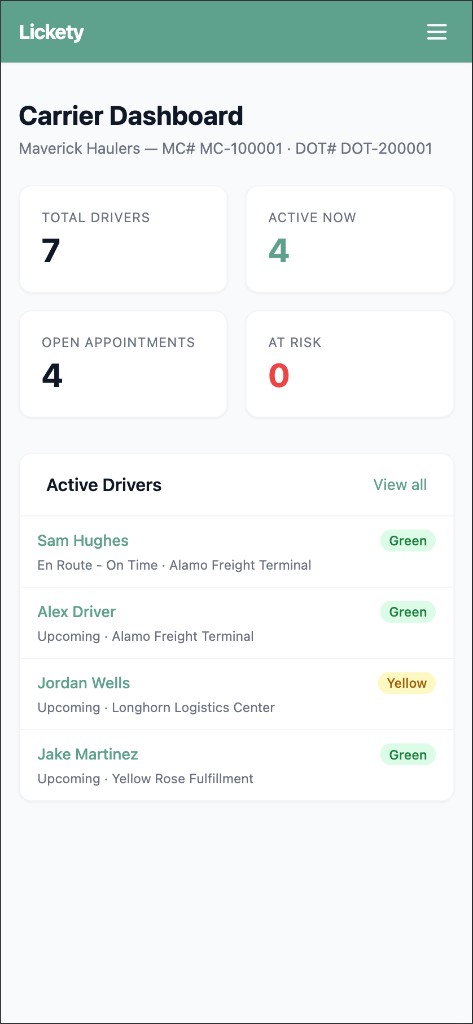
Your landing page after login. Shows your carrier name, MC number, and DOT number.
Four summary cards across the top:
| Card | What it shows |
|---|---|
| Total drivers | All drivers registered under your carrier |
| Active now | Drivers currently on an active appointment |
| Open appointments | Total appointments assigned to your drivers |
| At risk | Appointments where timing may be tight |
Below the cards: Active Drivers panel — name, status badge, appointment status, and destination. Click a name for driver detail.
3. Drivers
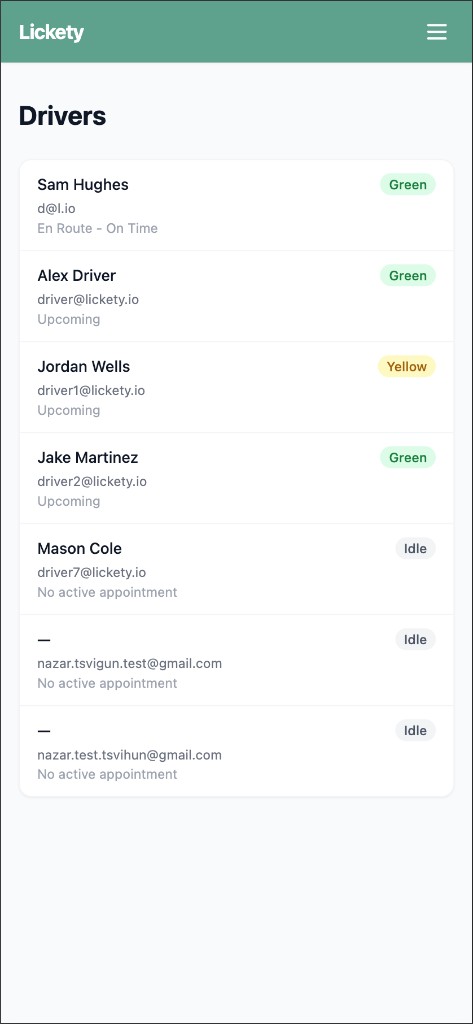
Click Drivers in the nav (or View all from the dashboard). Full table of all drivers under your carrier:
| Column | Content |
|---|---|
| Driver | Name |
| Driver's email address | |
| Status | Color badge (green / yellow / red / grey) |
| Active appointment | Current load status, or "—" if idle |
Click View → on any row for driver detail.
4. Driver detail
Click into any driver for their full profile.
Left column
- Status card — color badge, last known coordinates (lat/lon), speed, and timestamp.
- Current Appointment (if active) — status, origin, destination, pickup/delivery windows, and a shareable tracking link.
Right column
- Recent Location History — last 20 GPS readings (time, latitude, longitude, speed, battery level).
5. Appointments
Click Appointments in the nav. A table of all appointments across your drivers:
| Column | Content |
|---|---|
| Driver | Assigned driver name, or "Unassigned" |
| From | Origin / shipper company |
| To | Destination / receiver company |
| Pickup | Start of the pickup window |
| Delivery | Start of the delivery window |
| Status | Badge: pending, in_transit, delivered |
Carrier admins have read-only access to appointments. Receivers create and manage them — your drivers claim them from the mobile app.
6. Companies
Click Companies in the nav. Shows all facilities your carrier services:
| Column | Content |
|---|---|
| Name | Company name |
| Location | City, state |
| Role | Origin, destination, or both |
| Phone | Contact number |
7. Messages
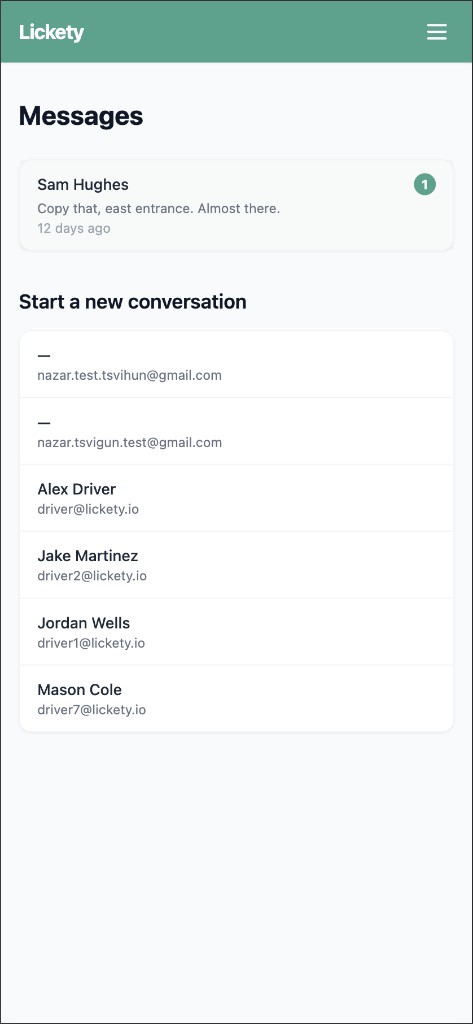
Click Messages in the nav. Your conversation list shows:
| Column | Content |
|---|---|
| Driver | Name and email |
| Last message | Preview (prefixed "You:" if you sent it) |
| Time | How long ago |
| Unread | Badge count for unread messages |
Click Open → to enter the chat thread. Below the list, drivers without a conversation have a Message → button to start one.
8. Chat
The chat thread shows a full message history with a driver:
- Date headers separate messages by day (Today, Yesterday, or full date).
- Your messages appear on the right in teal bubbles.
- Driver messages appear on the left in gray bubbles with the driver's name.
- Type a message at the bottom and click Send.
- New messages appear automatically — no need to refresh.
9. Mobile app
The Lickety mobile app provides a dedicated carrier admin experience separate from the receiver and shipper interfaces. Sign in with your carrier admin credentials — the app detects your role and opens the carrier shell.
Four bottom tabs
| Tab | What it shows |
|---|---|
| Dashboard | KPI tiles: active drivers, total drivers, open appointments, at-risk loads, queue depth |
| Drivers | Active and idle drivers grouped into sections; tap any driver for read-only detail (status, location, current appointment) |
| Messages | Conversations with drivers (unread badges) |
| Profile | Carrier name, email, member-since date, stats row, change password, notification settings, logout |
Real-time updates via WebSocket — appointment and driver changes appear automatically without pulling to refresh.
10. Status colors
Driver status updates every ~30 seconds while a load is active.
- Green — on track
On pace for the delivery window.
- Yellow — at risk
Timing may be tight.
- Red — endangered
Driver may miss the window. A push notification is sent.
- Grey — idle
No active appointment.
Driver queue
When a driver has no active appointment, they can join a virtual queue for any facility your carrier services. This is how idle drivers stay informed of new loads without constantly checking the app.
- Drivers receive a push notification when a load opens at a facility they're queued for.
- Claiming any load removes the driver from all their queue entries automatically.
- Drivers can queue at up to 5 facilities at once; entries expire after 24 hours.