
1. Sign in
Web portal
- Go to api.lickety.io/portal and enter your email and password.
- Use Forgot your password? if you need to reset.
- Sessions expire after 8 hours of inactivity.
Mobile app
- Download Lickety from the App Store or Google Play.
- Sign in with the same credentials. The app detects your admin role automatically.
2. Dashboard
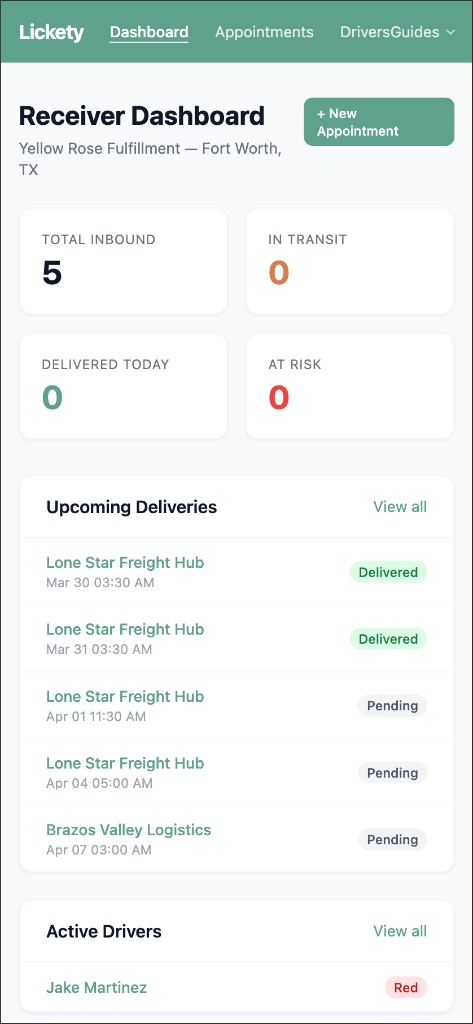
Your landing page after login. Shows your company name, location, and five KPI cards:
| Card | What it shows |
|---|---|
| Total inbound | All appointments destined for your facility |
| In transit | Driver has picked up and is en route |
| Delivered today | Completed deliveries today |
| At risk | Driver may not make the delivery window |
| Drivers queued | Drivers currently waiting in line for a load at your facility |
Below the cards: Upcoming Deliveries and Active Drivers panels with quick links into detail pages.
3. Appointments
Click Appointments in the nav (or View all from the dashboard). Full table of inbound appointments scoped to your company: ID, From, Driver, Delivery Window, Status.
Buttons at top: Import CSV and + New Appointment. Click View → on any row.
4. Appointment detail
Details section:
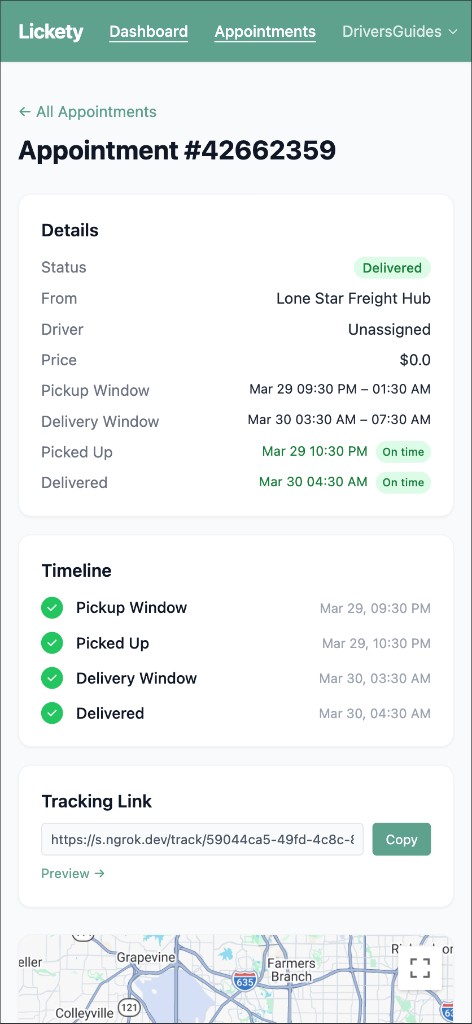
- Details card — status, origin, driver, carrier, price, pickup and delivery windows, on-time / late badges, detention minutes, payment hold.
- Timeline card — Pickup Window → Picked Up → Delivery Window → Delivered, with timestamps.
- Tracking Link — public URL; click Copy to share, or Preview to open.
Map section:
- Map — origin (P, teal), destination (D, orange), driver marker (blue).
- Current Status — driver color dot, status text, last seen, distance remaining, rough ETA.
Actions (before delivery): Edit and Cancel (confirms, notifies driver, broadcasts).
5. Create an appointment
Click + New Appointment. Fill in the form:
- Origin (Shipper) — choose from the dropdown.
- Pickup Start / End — when the driver should arrive at the shipper.
- Delivery Start / End — when the driver should arrive at your facility.
- Price — dollar amount (can be 0).
Your company is set as the destination automatically. Click Create Appointment to save.
6. Edit an appointment
From the detail page, click Edit. Change origin, windows, or price. Editing is blocked once delivery is confirmed. Click Update Appointment to save.
7. Import appointments (CSV)
Click Import CSV from the appointments page. Upload a .csv file — your company is set as the destination automatically.
Expected columns:
origin_vendor_id, pickup_window_start, pickup_window_end, delivery_window_start, delivery_window_end, price
origin_vendor_id is the ID of the origin company — you can find it on the Companies page or in the sample CSV. You may use origin_company_id instead. Download the sample CSV link on the import page to see a pre-filled example. Errors display per row if any fail.
8. Drivers
Click Drivers in the nav (or View all from the dashboard). Shows all drivers who have delivered to your facility: name, email, status badge, active appointment summary.
9. Driver detail
Name, email, phone, carrier. Current status badge with last location timestamp, coordinates, speed, and battery level. Active appointment card (if any) with a link. Recent location history table.
10. Messages
In the mobile app, the Messages tab shows conversations with drivers. Send and receive messages with read receipts and unread badges.
11. Tracking links
Each appointment has a public tracking URL. Find it in the appointment detail under Tracking Link. Click Copy to share with customers or dispatchers — no login required for the recipient.
12. Mobile app
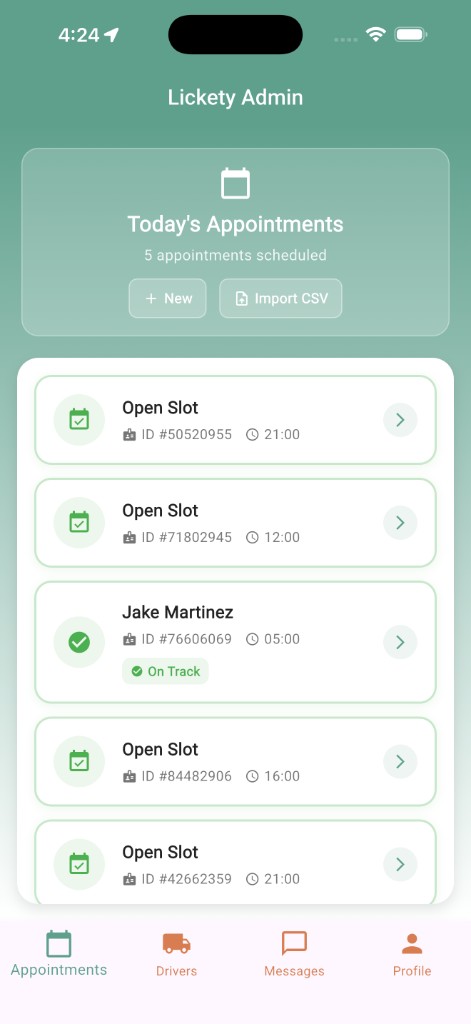
Same features in the Lickety mobile app. Four bottom tabs:
| Tab | What it shows |
|---|---|
| Appointments | Today's loads; create new or import CSV; tap for detail |
| Drivers | Active and past drivers at your facility |
| Messages | Chat with drivers (unread badges) |
| Profile | Stats, change password, notifications, logout |
Real-time updates arrive via WebSocket — appointment and driver changes appear automatically.
13. Status colors
Driver status updates every ~30 seconds while a load is active.
- Green — on track
On pace for the delivery window.
- Yellow — at risk
Window may be tight.
- Red — endangered
Driver may miss the window.
- Grey — idle
No active appointment.
Driver queue
Drivers can join a virtual queue for your facility. When you create or release an appointment, queued drivers are automatically notified via push — no extra action needed from you.
- The Drivers queued dashboard card shows how many drivers are currently waiting.
- Notifications fire automatically on new appointments, releases, and cancelled holds.
- Drivers manage their own queue from the mobile app; entries expire after 24 hours.