
1. Get the app and sign in
- Download Lickety from the App Store or Google Play.
- Create an account or sign in with your email and password.
- You can also use sign up and sign in on this website.
2. First launch: permissions
The first time you open the app, you'll see setup screens for App Tracking (iOS), location disclosure, location access, and push notifications.
Location lets Lickety verify you can claim loads, show distance and ETA, update your status color, and share position while you're on a job. Choose Always (or Android equivalent) for the smoothest experience. Notifications tell you about new work, your queue, and when a window is at risk.
3. Main screens (tabs)
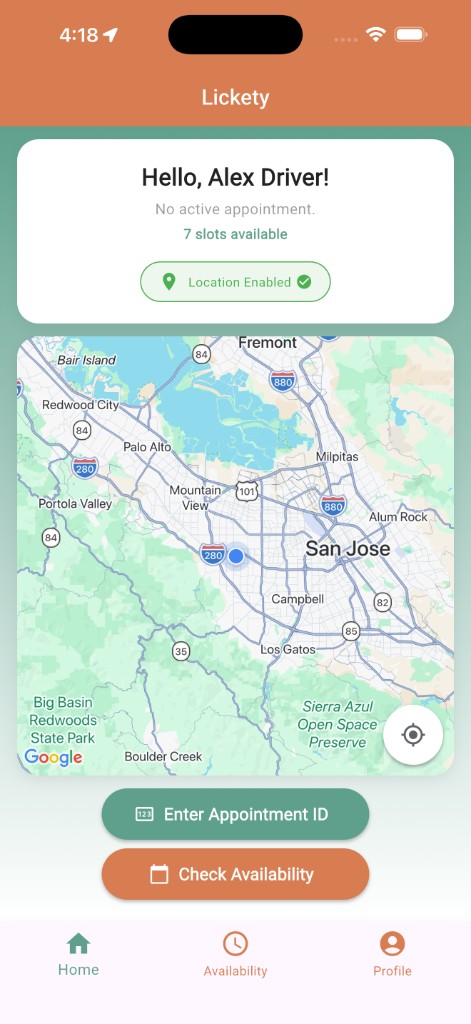
You'll always see three tabs at the bottom:
| Tab | No active job | On a job |
|---|---|---|
| First | Home | Home |
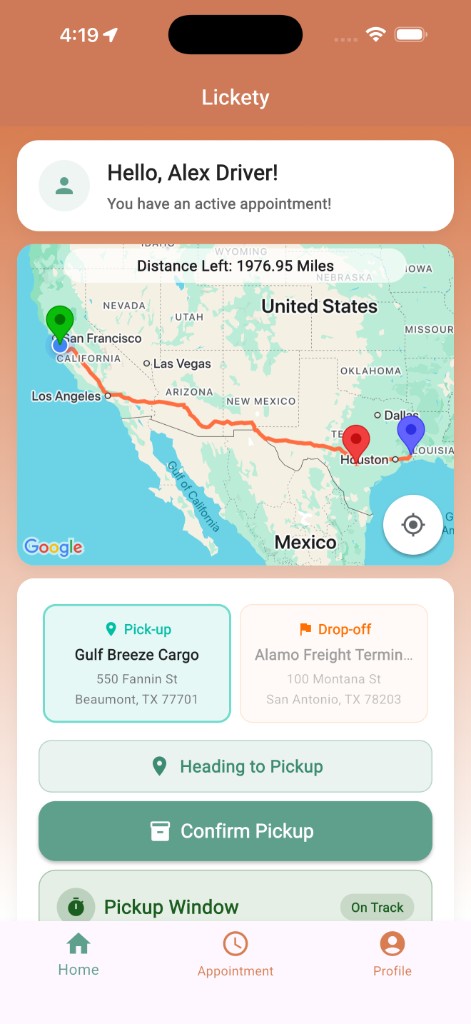
| Middle | Availability — open loads | Appointment — map & actions |
| Third | Profile | Profile |
If a payment step is required, you may see hold screens on the middle tab until checkout finishes.
4. Typical workflow
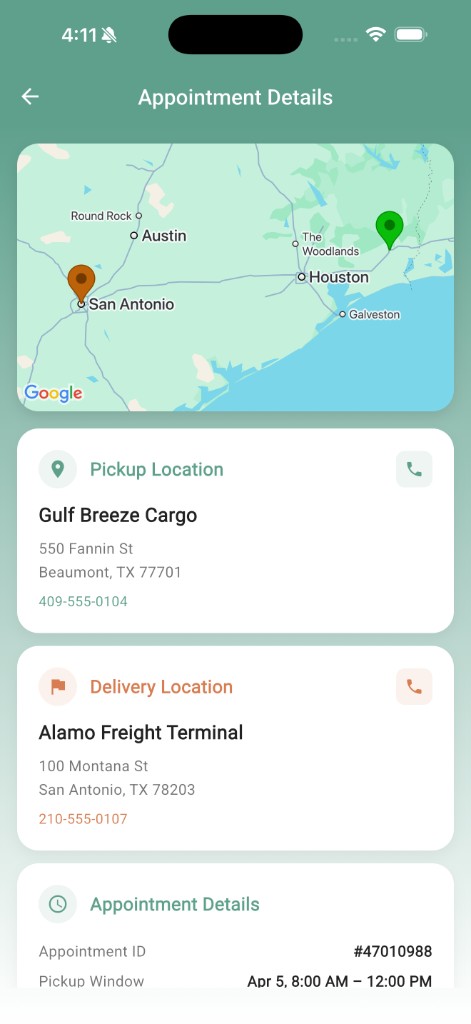
- Open Availability (or start from Home) and tap a load to read pickup and delivery windows and addresses.
- Tap Claim Appointment. Keep location on — the app needs a fresh GPS fix to claim.
- After you claim, use Home and Appointment for maps and status.
- At pickup, tap Confirm Pickup when freight is loaded.
- At delivery, tap Confirm Delivery when freight is unloaded.
- If you can't finish, use the app's release options so another driver can take the load.
5. Payment hold (Relay)
Relay is a third-party payment app used by some carriers. When a load requires Relay, you'll be redirected to complete checkout right after you claim. The load stays on hold until payment finishes. If time runs out, the appointment may return to the board — follow the on-screen message or call your dispatcher.
6. Status colors
Your status updates often while you're on a job.
- Green — on track
On pace for your delivery window.
- Yellow — tight
Getting tight on time; keep watching the clock.
- Red — at risk
At serious risk of missing the window. You may receive a push notification.
- Grey — idle
No active appointment, or the appointment has expired.
7. Queue
The queue lets you wait in line for a facility so you're automatically notified when a load opens up — no need to keep checking Availability.
How to join
- On the Availability tab, tap Queue.
- Choose a facility and tap Join Queue.
- Your position number appears — lower is better.
How it works
- When a load opens at that facility, you get a push notification.
- Claiming any load removes you from all your queue entries automatically.
- Leave a queue at any time from the same screen.
Limits to know
- Up to 5 facilities at once.
- Cannot join while you have an active appointment.
- Entries expire after 24 hours.
8. Chat, notifications, tutorial
Profile is where you'll find chat with your carrier (when enabled), notification history, and the option to replay the built-in tutorial with safe demo data.
If you're offline, fix Wi-Fi or cellular — the app needs connectivity to claim and update loads.